Shadowrocket for Mac
Shadowrocket
Exclusive for M-Series Mac · Powerful & Lightweight
🚀 Best Choice for M-Series Mac
⚡ All Protocols (SS/Trojan/VLESS)
⚙️ Powerful URL Rewrite & MitM
📊 Traffic Analysis & Sniffing
⚠️ Compatibility Warning
This software ONLY supports Macs with Apple Silicon (M1/M2/M3 etc.).
If you are using an Intel Chip Mac, please use Clash Verge Rev.
💲 Purchase Note
This is a Paid App ($2.99). Please use a US Apple ID to search and download in the Mac App Store.
📥Newbie Guide: How to Download? (Click to Expand)
Shadowrocket requires a US Apple ID. Switching accounts on Mac is convenient:
⛔️ Core Warning: Two "NEVER DOs"
- NEVER log in via System Settings! (App Store Login ONLY)
- NEVER click "Continue" for 2FA! (Must select "Other Options" -> "Don't Upgrade")
- Open App Store, click "Store" in the top menu bar -> "Sign Out".
- Click "Sign In" at the bottom left, enter the shared ID and password.
- 2FA Popup: Click "Other Options" -> "Don't Upgrade". (Critical Step)
- Search for Shadowrocket (🚀 icon) and download.
- After downloading, click "Sign Out" in the menu bar and switch back to your own ID.
Quick Start
1️⃣
Get Sub
➜
2️⃣
Setup
➜
3️⃣
Update
➜
4️⃣
Connect
Detailed Guide
1
Get Subscription Link
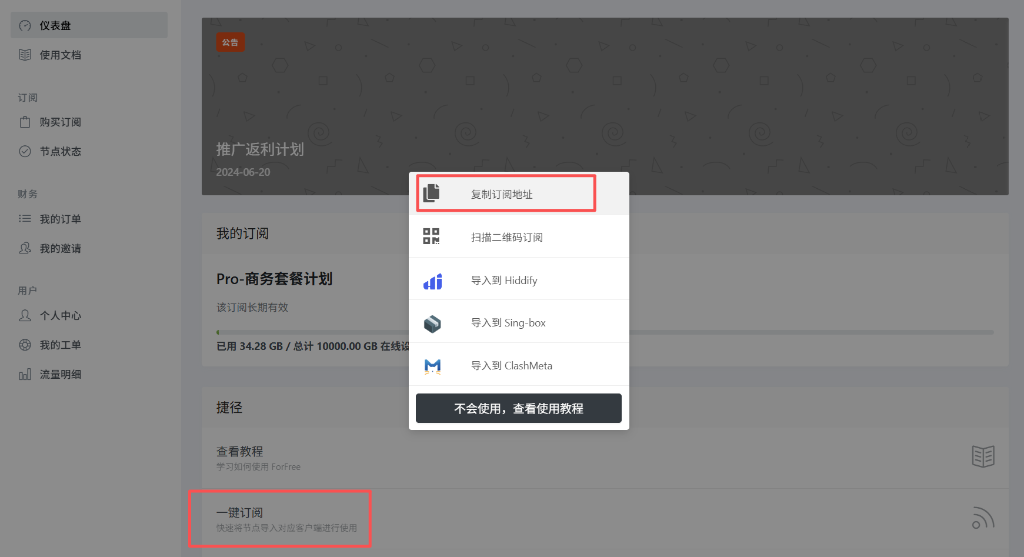
Visit ForFree User Center, click "Copy Subscription Address".
2
Enable Auto Update
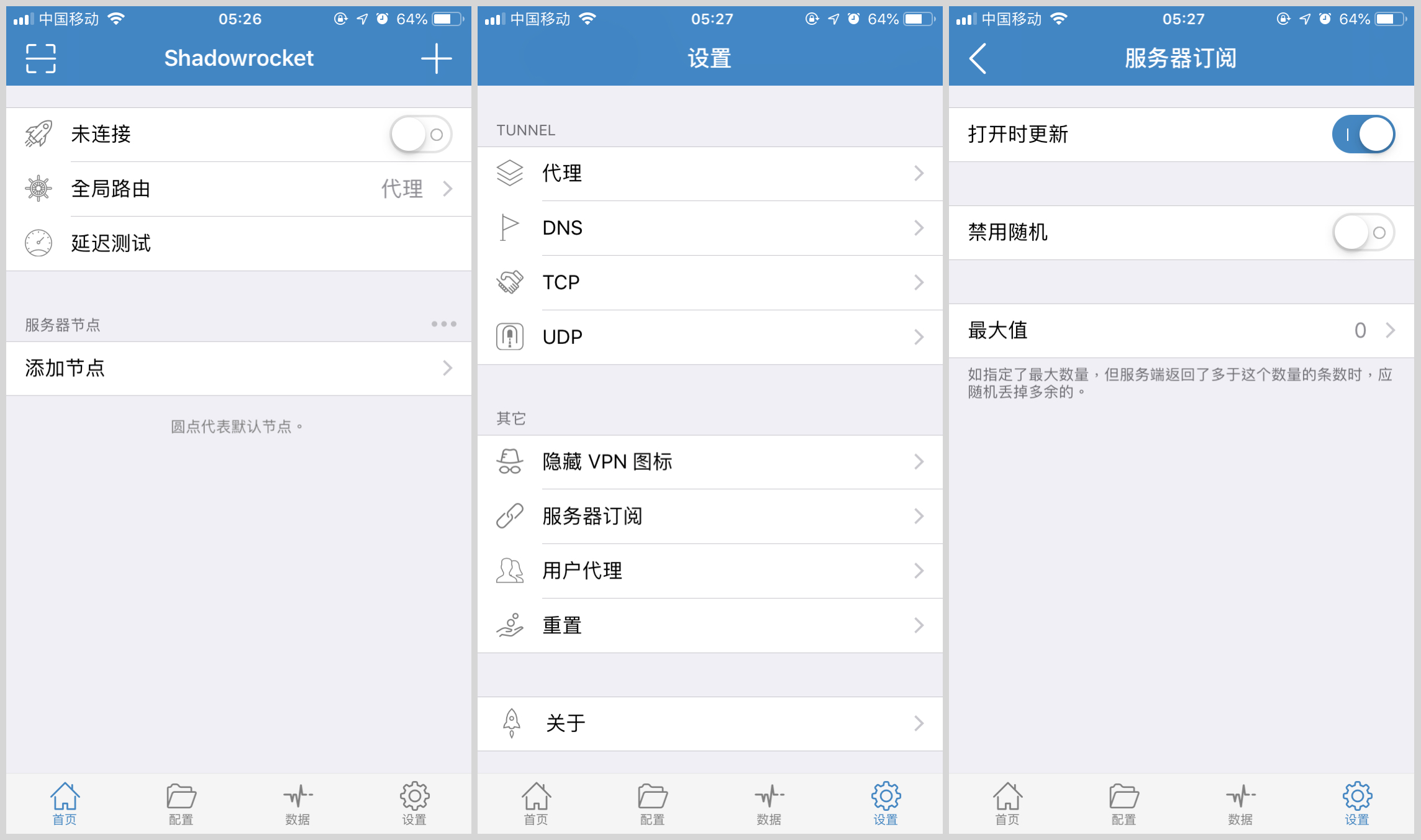
Open Shadowrocket, click "Settings" at the bottom, scroll down to find "Server Subscribe". Turn on "Update on Open". This ensures you get the latest nodes every time you open the app.
3
Add Subscription
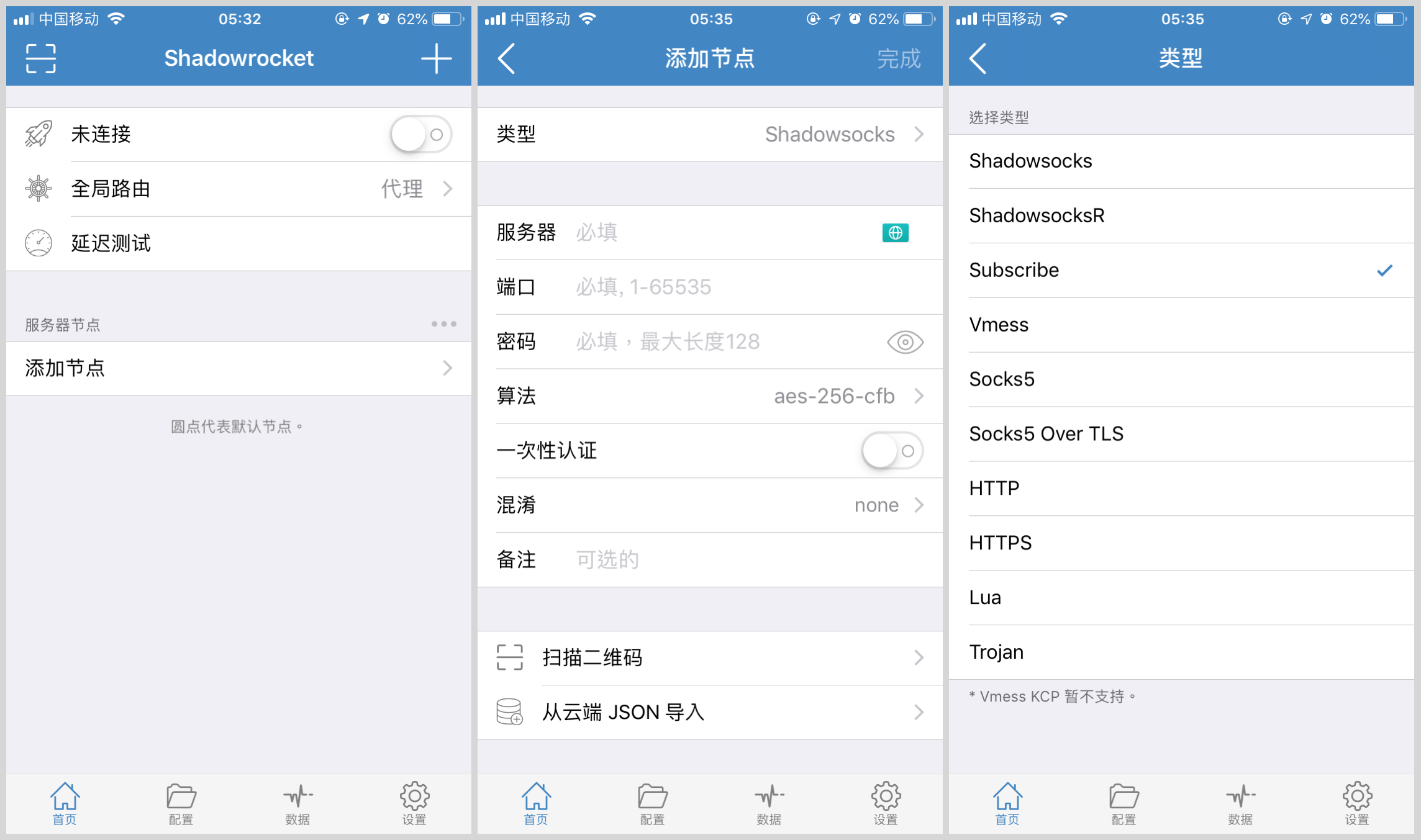
Go back to the home page, click the + sign at the top right. Select Type Subscribe (the third one).
4
Paste Link
Paste the subscription link you copied into the URL field, and enter ForFree for Remark. Click Save at the top right.

5
Start Connecting
Back on the home page, you will see the node list updated. Select a node (a small yellow dot appears in front), then turn on the Connection Switch at the top.
When connecting for the first time on Mac, it will also prompt to add VPN configurations. Please click Allow and complete fingerprint/password verification.

🎉 Configuration Complete!
You can now browse the internet freely.
Issues? Check FAQ or contact support.